Business Payroll: How to Create a Paychecks for Vacations and Holidays with ezPaycheck Software
ezPaycheck payroll software is the easy-to-use and flexible payroll tax solution for small businesses. It can handle paychecks by hourly rate, salary, shift rate, commissions, tips, pay-by-piece, pay-by-load and more. It also prints paychecks on blank stock and pre-printed checks.
Here is the guide on how to handle paychecks for employees who are paid at different rates for vacations and holidays:
For example:
Employee XYZ is paid at $20 per hour as regular pay rate. He is paid at $10 per hour for vacations and holidays.

From $169 | ezPaycheck Makes Payroll An Easy, In-House Task!(For Windows and Mac)
- Trusted by Thousands for Two decades.
- Calculate Federal & State Taxes, Print Paychecks, Print W2, W3, 941, 943 and 940.
- User-friendly, Easy-to-use
- No monthly fee.
Act now: automate your small business payroll today.
Try it free for 30 days with no obligation. No credit card required.
|
Step 1: Add the new payment type for vacation and holiday pay
You can click the ezPaycheck left menu "Company Settings" then "Wage Setup" to view wage set up screen.
You can check one paytype not in use now, then click the button behind it to rename it.
Enter the new payment type and save it. (For example "Vacation", "Holiday" or other name)
Click the Save button on Wage Setup screen to update your change.
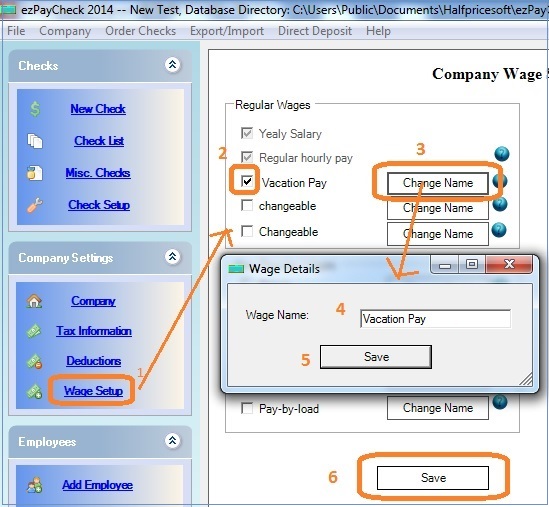
(Click image to enlarge)
Step 2: Set up the employee pay rates for regular pay, vacations and holidays
Click the left menu "Employee List" to view employee list.
Add/Edit the employee, and enter the new pay rate.
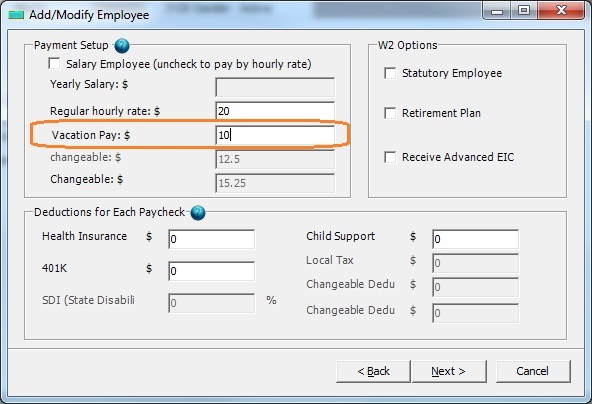
(Click image to enlarge)
Step 3: Generate a new payCheck
Enter the hours for vacation and holiday 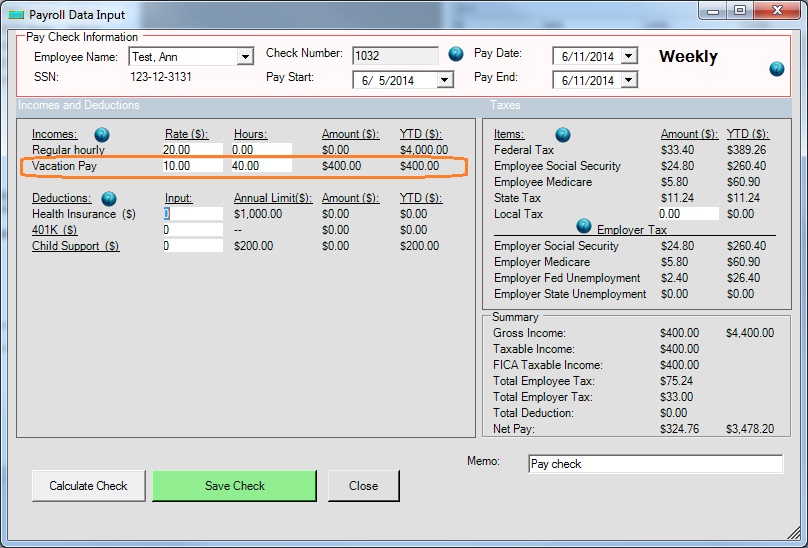
(Click image to enlarge)
Step 4: Print paychecks
- Select checks from check list
- Click Print button to print checks
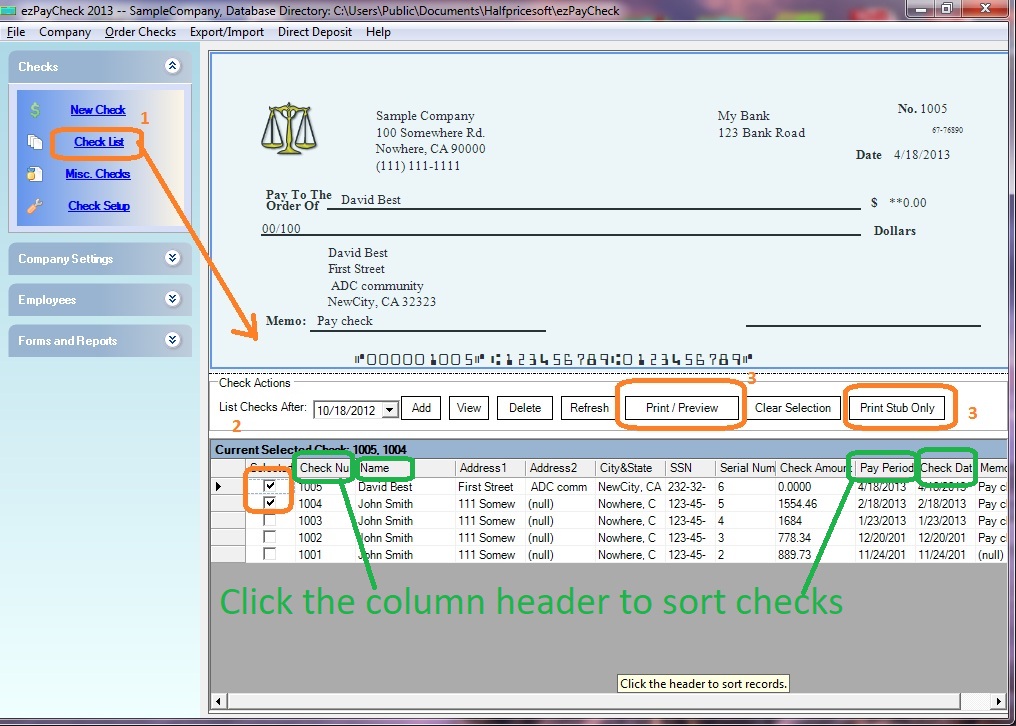
(Click image to enlarge)
Related Links:
Download Now> Buy Now