Halfpricesoft
Business Solutions
Payroll & Tax
ezPaycheck Windows
ezPaycheck for Mac
Direct Deposit Portal (Beta)
Online Payroll and Time Tracking
E‑Filing
E‑File 941/940/94x
E‑File 1094/1095 B&C
E‑File 1099/W2
Productivity
ezTimeSheet
ezDocuReader
Accounting & Payments
ezAccounting
ezACH Deposits
Forms
W2 and 1099 Forms
Check Paper
Check Printing
Business
ezCheckPrinting Windows
ezCheckPrinting Mac
QuickBooks/Quicken Virtual Printer
ezCheckDraft
ezCheckPrinting API
Personal
ezCheckPersonal Windows
ezCheckPersonal Mac
Check Paper
Check Paper
Tax Compliance
ACA 1095
ez1095
W2 and 1099
ezW2
ezW2Correction
ez1099
Tax Forms
1099 and W2
Resources
Payroll and Accounting Guides
ezPaycheck Guide
ezPaycheck Mac Guide
ezPaycheck Features
Payroll by State
E‑File 941 Guide
ezAccounting Guide
Tax Compliance
Tax Tables (2026)
ezW2 Guide
E‑File W‑2 W‑3 to SSA
E‑File W‑2 W‑3 to States
ez1099 Guides
ez1095 Guides
Check Printing
ezCheckPrinting Guide
ezCheckPrinting Mac Guide
Other
Support
Deals and Discounts
All Downloads
All Purchases
Career
Support
Search
Cart
Sign In
Support
Search
Cart
Sign In
Support
Search
Cart
Sign In
Business Solutions
Payroll & Tax
ezPaycheck Windows
ezPaycheck for Mac
Direct Deposit Portal (Beta)
Online Payroll and Time Tracking
E‑Filing
E‑File 941/940/94x
E‑File 1094/1095 B&C
E‑File 1099/W2
Productivity
ezTimeSheet
ezDocuReader
Accounting & Payments
ezAccounting
ezACH Deposits
Forms
W2 and 1099 Forms
Check Paper
Check Printing
Business
ezCheckPrinting Windows
ezCheckPrinting Mac
QuickBooks/Quicken Virtual Printer
ezCheckDraft
ezCheckPrinting API
Personal
ezCheckPersonal Windows
ezCheckPersonal Mac
Check Paper
Check Paper
Tax Compliance
ACA 1095
ez1095
W2 and 1099
ezW2
ezW2Correction
ez1099
Tax Forms
1099 and W2
Resources
Payroll and Accounting Guides
ezPaycheck Guide
ezPaycheck Mac Guide
ezPaycheck Features
Payroll by State
E‑File 941 Guide
ezAccounting Guide
Tax Compliance
Tax Tables (2026)
ezW2 Guide
E‑File W‑2 W‑3 to SSA
E‑File W‑2 W‑3 to States
ez1099 Guides
ez1095 Guides
Check Printing
ezCheckPrinting Guide
ezCheckPrinting Mac Guide
Other
Support
Deals and Discounts
All Downloads
All Purchases
Career
Esc
Menu
Close
Payments
for ezPaycheck
My Account
Quick Start Guide
FAQs
ezPaycheck Payroll Software
ezPaycheck for Mac
ezPaycheck for Windows
Download
Features & Pricing
Quick Start Guide
E-File 941/940
Sample Paychecks
Sample Forms & Reports
Case Study
Payroll by State
FAQs
Order W2 1099 Forms
Order Blank Check Stock
Federal Tax Tables
State Tax Tables
Unemployment Wage Base
Employment Tax Due Dates
Check Printing Software
ezCheckPrinting Business
ezCheckPrinting Windows
Download
Sample Checks
Purchase
Quick Start Guide
FAQs
for Mac
for QuickBooks
for Quicken
Blank Check Stock
ezCheckPrinting Mac
Download
Sample Checks
Purchase
Quick Start Guide
FAQs
Order Blank Stock
QuickBooks Check Print
Download
Purchase
Quick Start Guide
FAQs
Quicken Check Print
Download
Purchase
Quick Start Guide
FAQs
ezCheckDraft Software
Download
Purchase
Quick Start Guide
FAQs
Sample Draft Checks
ezCheckPersonal
ezCheckPersonal Software
Download
Sample Checks
Purchase
Quick Start Guide
FAQs
for Mac
Developer SDK
ezCheckPrinting SDK
Download
Help Documents
W2 1099 1095 Software
W2/1099 Software
ezW2 Software
Download
Purchase
Quick Start Guide
Sample W2 1099 Forms
FAQs
Order W2 1099 Forms
W2C, W3C Software
ezW2Correction Software
Download
Purchase
Quick Start Guide
Sample Forms
FAQs
1099s, 1098s Software
ez1099 Software
Download
Purchase
Quick Start Guide
Sample Forms
FAQs
ACA 1095 & 1094 Software
ez1095 Software
Download
Purchase
Quick Start Guide
E-file Service
Sample Forms
FAQs
Forms W2,1099,1098&More
ezAccounting Software
Overview
Download
Purchase
Quick Start Guide
FAQs
Case Study
Order W2 1099 Forms
Order Blank Check Stock
Federal Tax Tables
State Tax Tables
Unemployment Wage Base
Employment Tax Due Dates
Direct Deposit Software
ezACH File Creator
Download
Purchase
Quick Start Guide
Samples
FAQs
Online Payroll Solution
Online Time Tracking
PC Time Clock Software
ezTimeSheet TimeClock
Download
Purchase
Quick Start Guide
Tutorial
FAQs
Document Data Reader
ezDocuReader
Download
Purchase
Quick Start Guide
Samples
FAQs
Check Paper
Tax Forms
Payroll Tax Center
Federal Tax Tables
Federal Tax Site
State Tax Tables
State Tax Site
Unemployment Wage Base
Employment Tax Due Dates
Business Resources
Tax Forms & Instructions
Business News
How to
Glossary
Special Offers
Free Stuff
Download
Purchase
Support
About Us
Blog
Articles
Forum
Site Map
Customer Testimonials
How to Handle Employee Overtime Payment
New
Halfpricesoft Online Time Tracking System
- Manage Your Business Any Time, Anywhere
We are excited to announce the release of the new online version. Please feel free to test drive and give us your feedback. We continue to support the desktop version.
Compare Time Tracking Solutions: Desktop vs. Online
EzTimeSheet employee timeclock simplifies employee attendance tracking. As an administrator, you can approve overtime hours manually.
Step 1: Log in as administrator
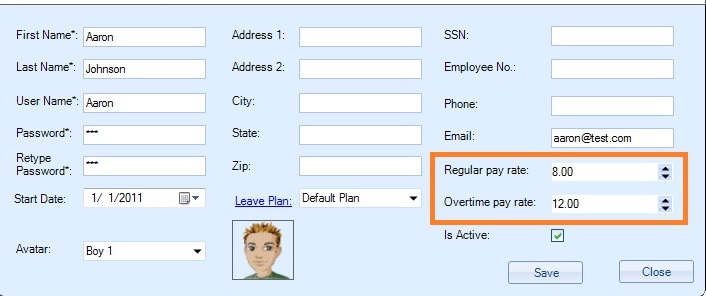
You need to make sure you have specified the overtime pay for this employee
Step 2: View TimeSheet
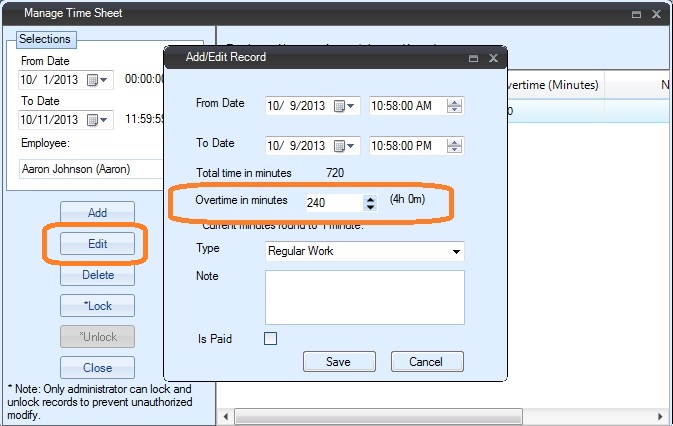
Step 3: Add/Edit the timesheet entry and enter overtime amount
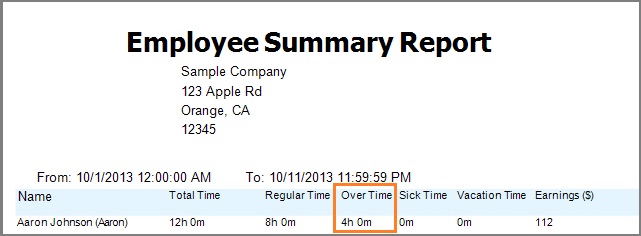
When you generate the Employee Time Earning Summary Report, you will see regualr pay and overtime pay there.
Related Links:
How to set up employee vacation and sick leave plan
How to award employee vacation and sick leave time manually
How to set up leave plan by fixed rate
Vacation, PTO and Sick Leave Accrual
How to set up PC employee time clock
How to share the database over network?
Employee Leave Management: how an employee makes a request and how it will be approved
How to export ezTimeSheet data to ezCheckPrinting and print checks?